The CARRERA HYBRID app is the heart of the system. It manages all driving parameters, especially the driver assistance features.
Let’s take a look at the features.
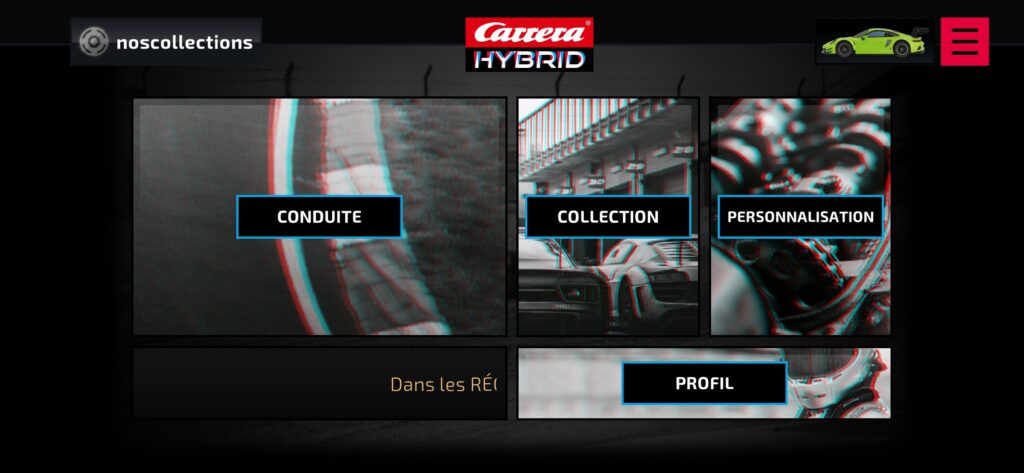
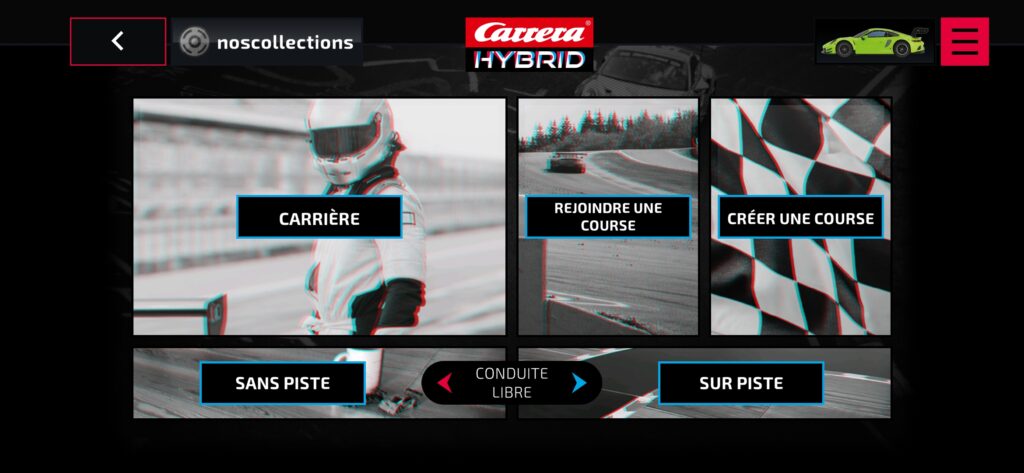
The main menu is divided into 5 parts, 4 main ones in the center and a small one at the top right (Settings and instructions and account)
Collection
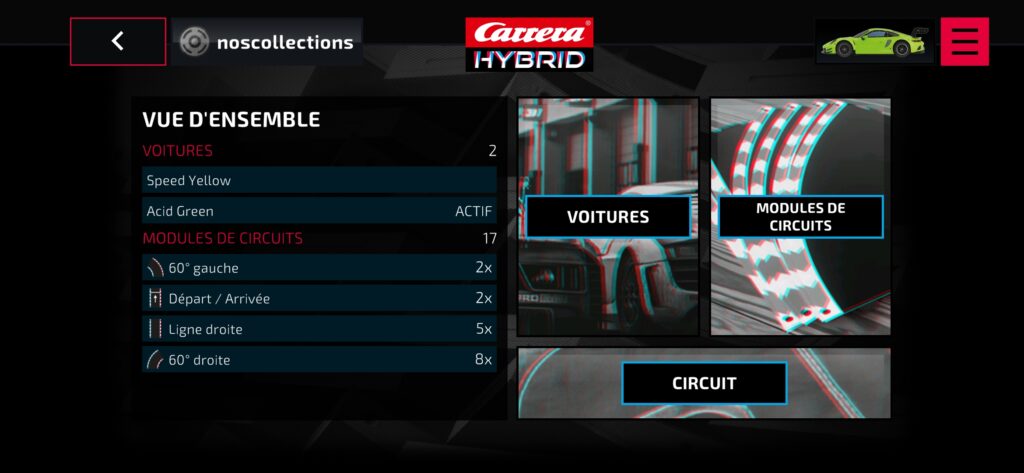
The collection section gathers all the car models you own and all the track sections. You can find all this data in the table on the left. On the right, you can edit this information but also create circuits. You can thus create circuits and find all the circuits you have created. A powerful editor is integrated, but the application and the car can detect a track on their own, it’s amazing and we’ll come back to all of this later.
Cars
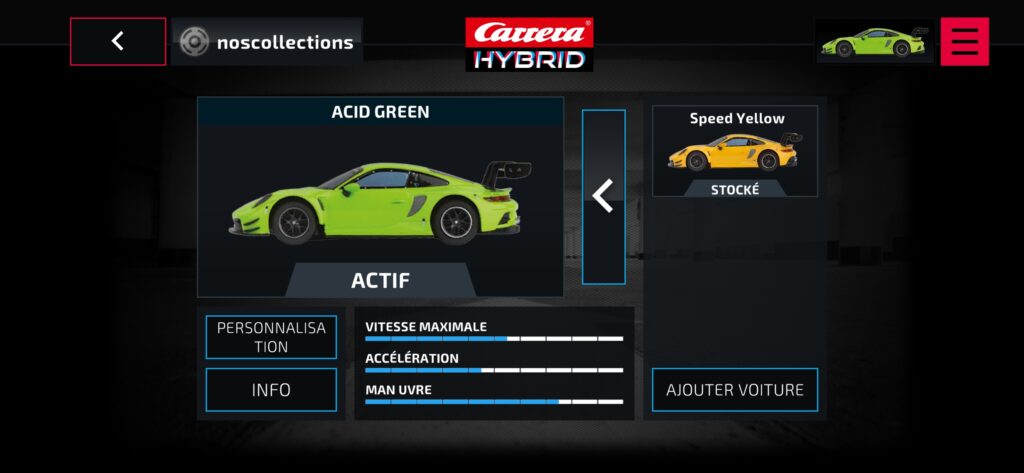
The Cars section contains all your vehicles; it’s your garage. You can see which car you currently control.
Personalization
As you gain experience, you will unlock items in the categories
- Tires
- Gearbox
- Brakes
- Boost
For each of these categories, there are several levels to unlock. Activating a different mode for these categories allows you to influence the 3 parameters that can be seen at the bottom of the screen:
- Maximum Speed
- Acceleration
- Maneuver
Depending on your choices, performance will vary.
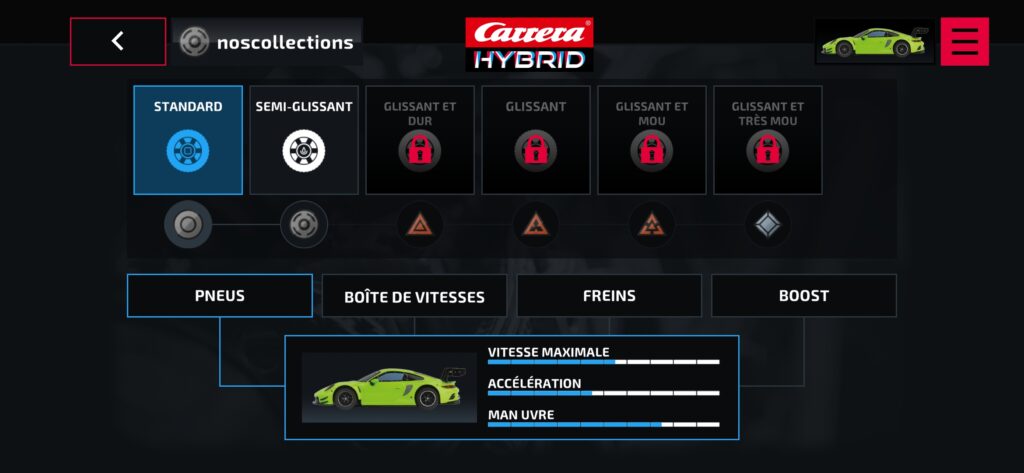
The first screen is for tire type. Six tire types are available after unlocking.
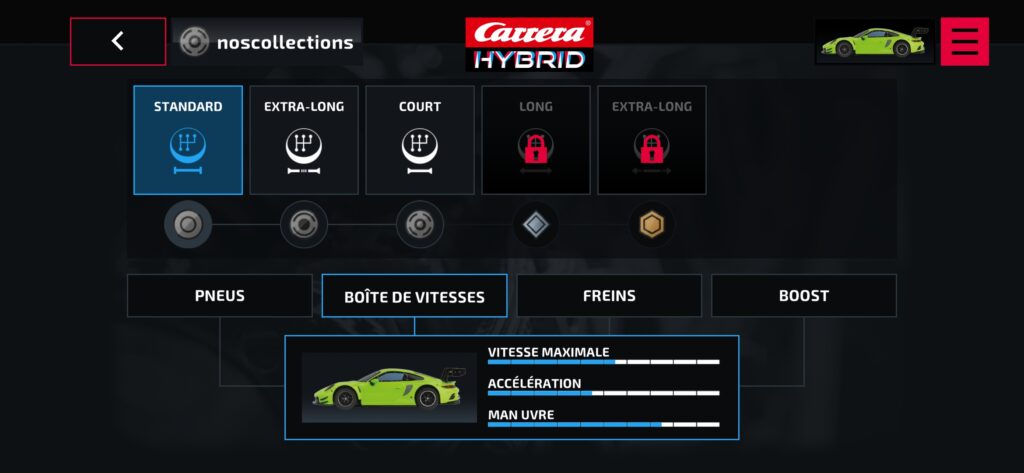
The second screen concerns the gearbox. This is an important element depending on the type of circuit (fast or slow). 5 levels are available.
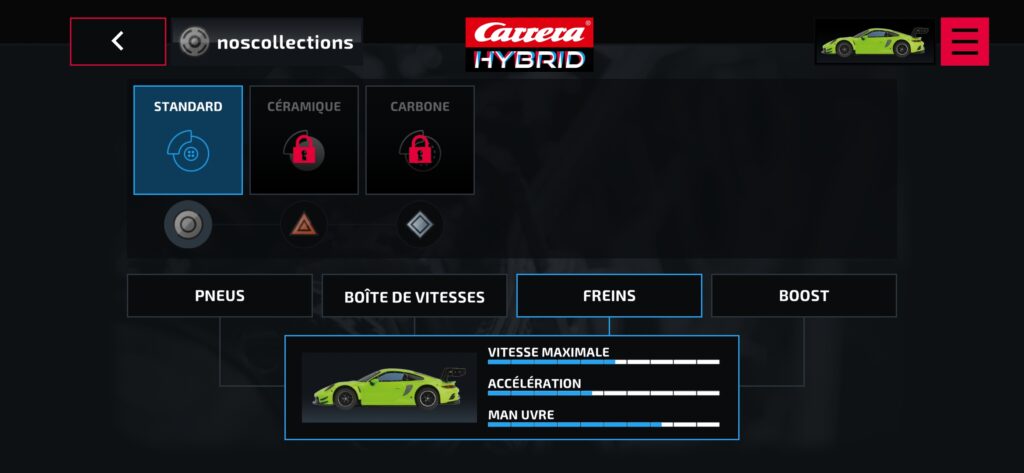
The third screen concerns the brake performance and its 3 levels.
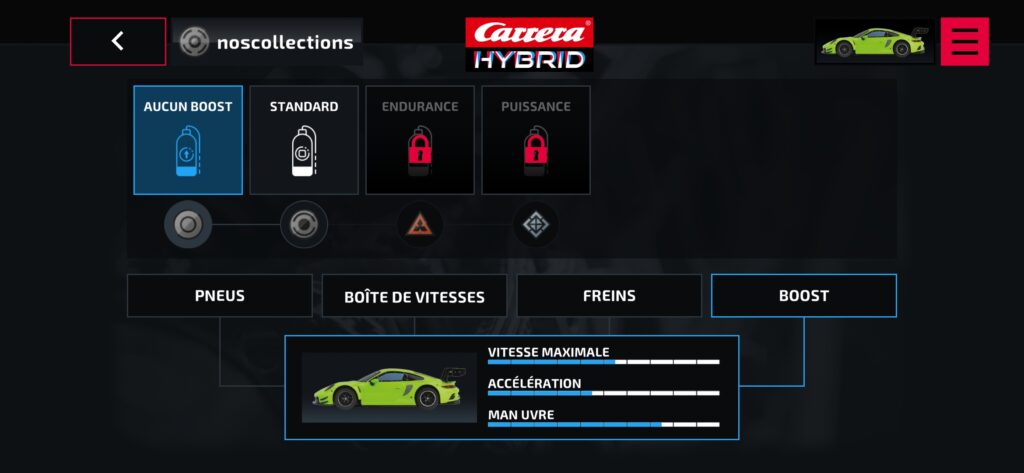
The last screen is about boosting with 4 levels.
Informations
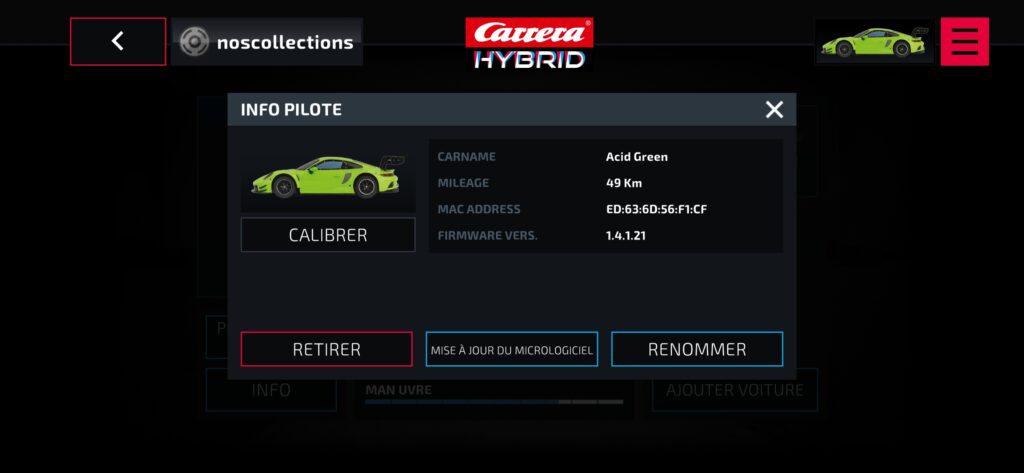
The information section tells you some things about the active car.
- The car’s name
- The mileage
- The car’s Bluetooth MAC address
- The firmware version number
You can also calibrate the car’s steering, rename it, move it out of your garage, and update the firmware.
Circuit modules
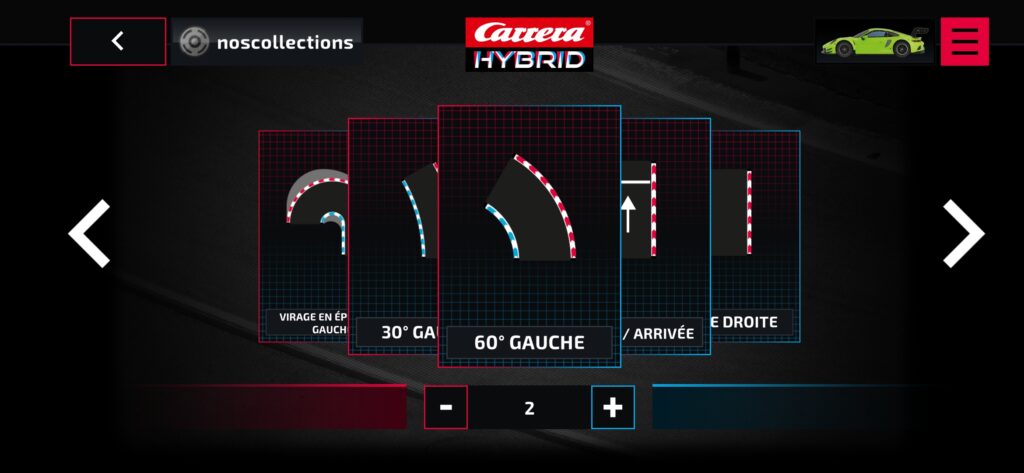
All existing modules are displayed in a carousel, and at the bottom, you can change the number of elements you have using the minus and plus buttons.
When you complete a circuit, the app will tell you how many of each element you have left and how many you need to complete the circuit.
Track
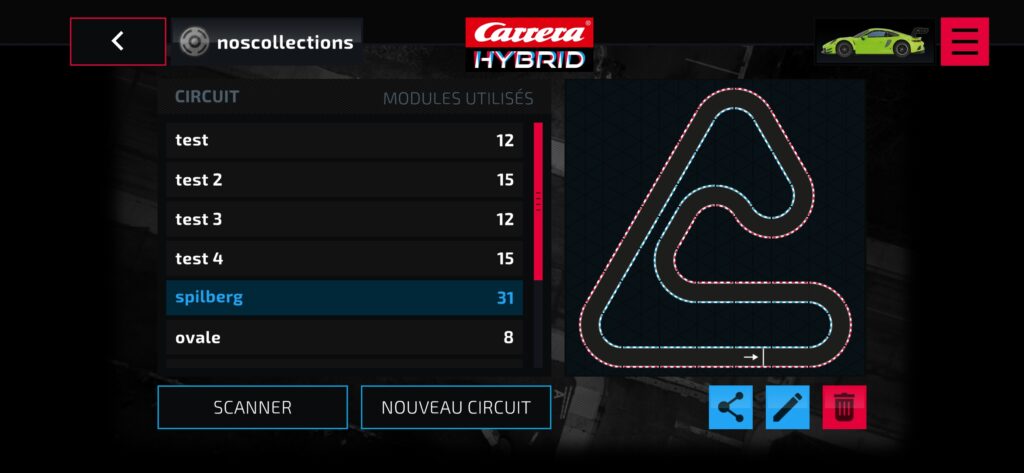
New track
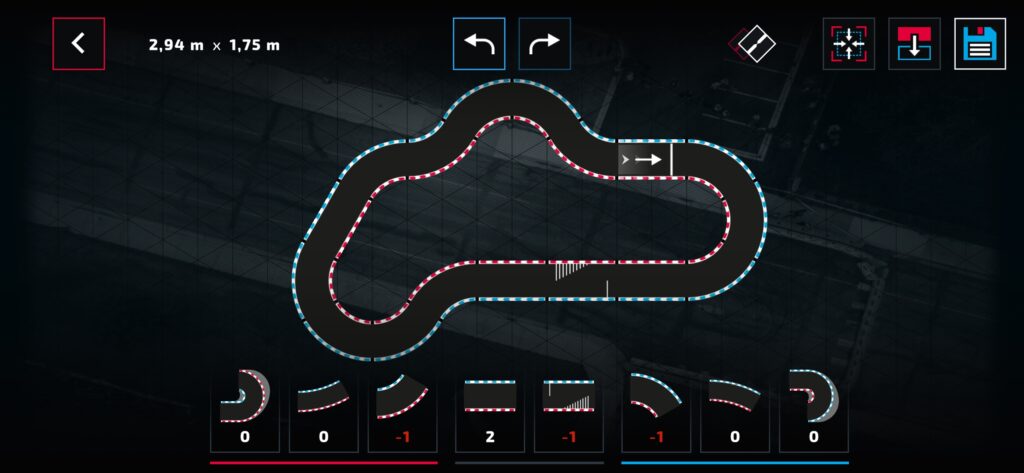
Use the icons at the bottom to create your circuit. If the number turns red, it means you don’t have enough of that element.
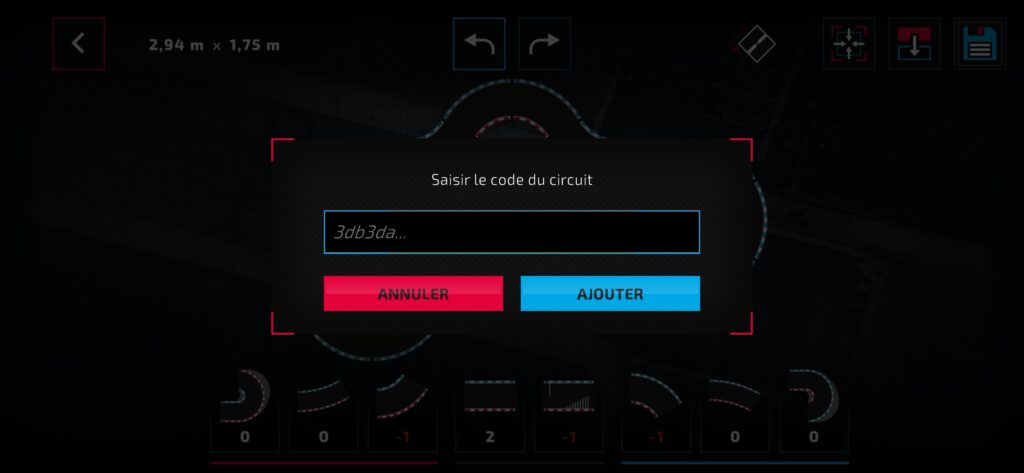
Enter a track code to import a track. You may remember the letter coding of track elements, but a code composed of these letters is used. On the page https://www.carrera-fun.com/?page_id=7626&go43_level1=Formule+1 you can choose a track and find the Hybrid App Code to import the track. It’s a shame that CARRERA didn’t use the QR Code system.
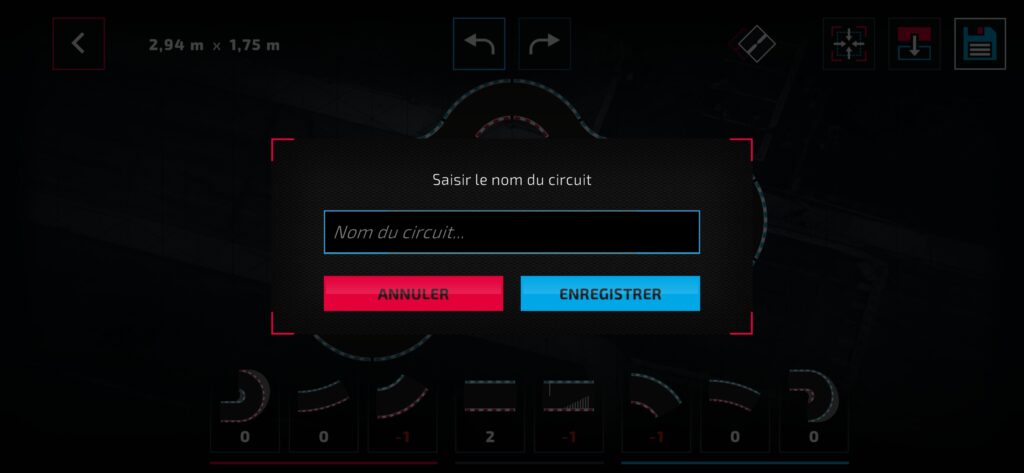
After creating a circuit, give it a name for your circuit library.
Scanner
The application can automatically detect the circuit you have just created.
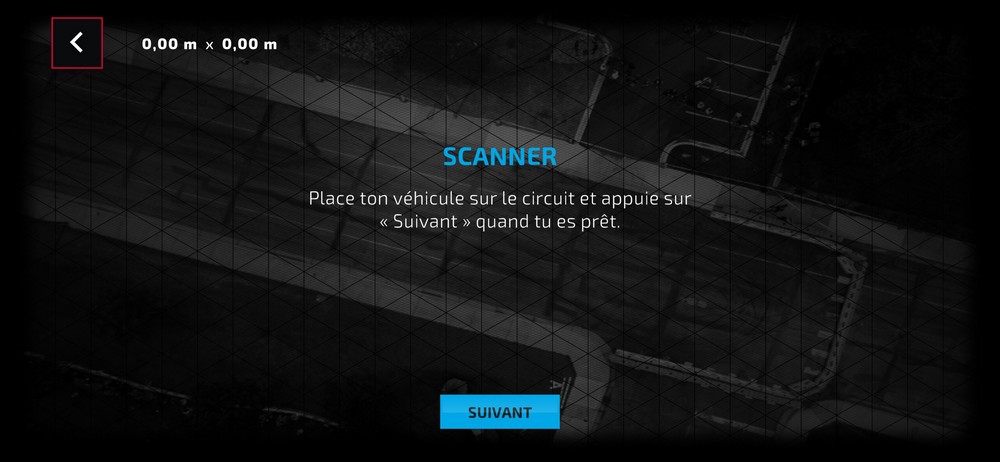
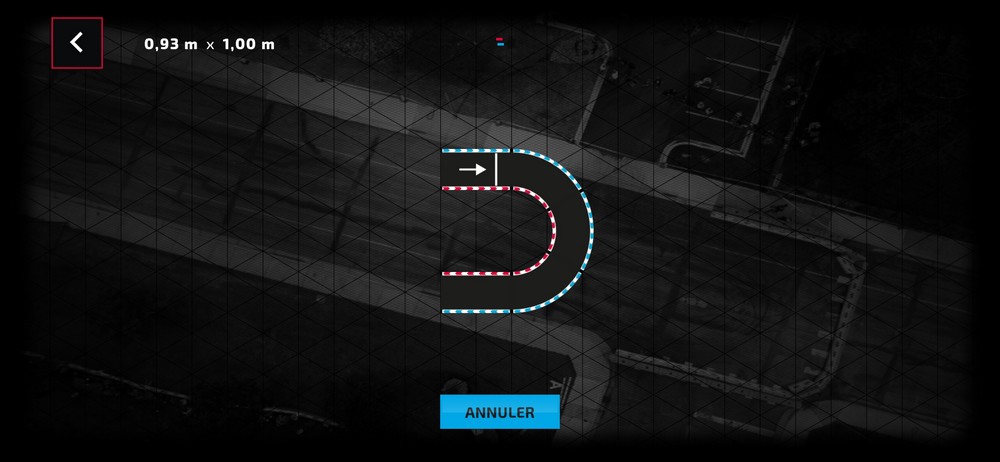
It’s done.
Personalization
Profile
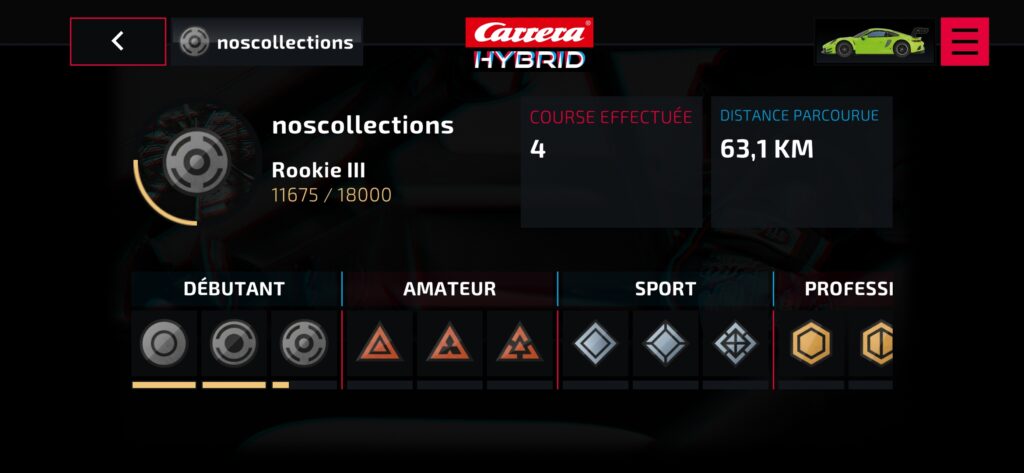
Here you can track your driver career progress which will allow you to unlock items to upgrade your car.
Paramètres
This is where you adjust various application settings, let’s take a look at the options.
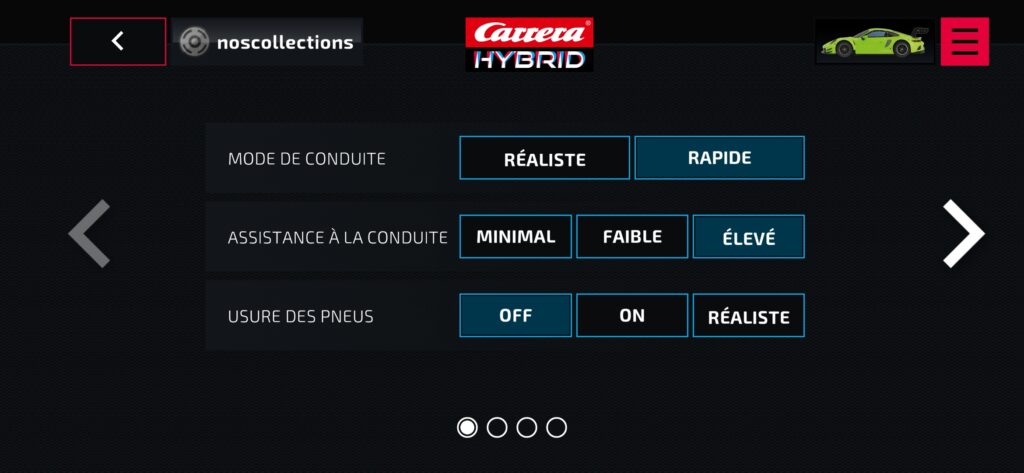
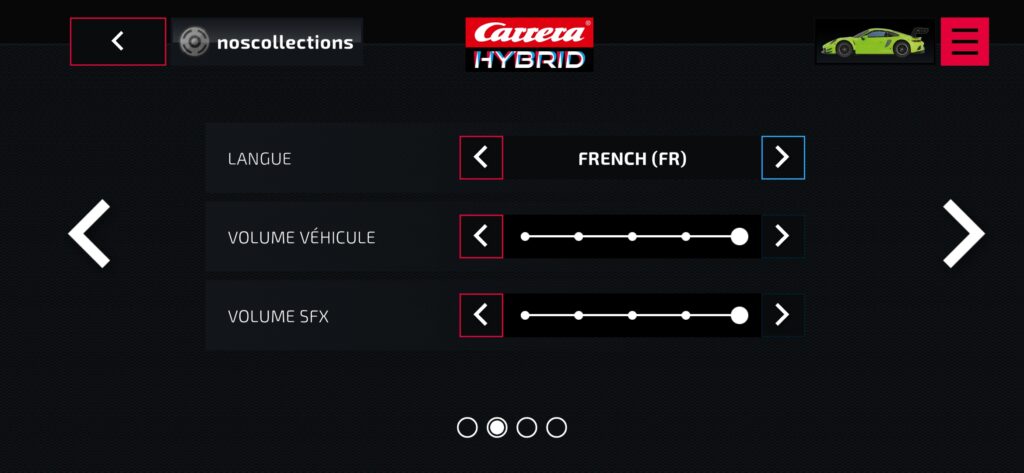
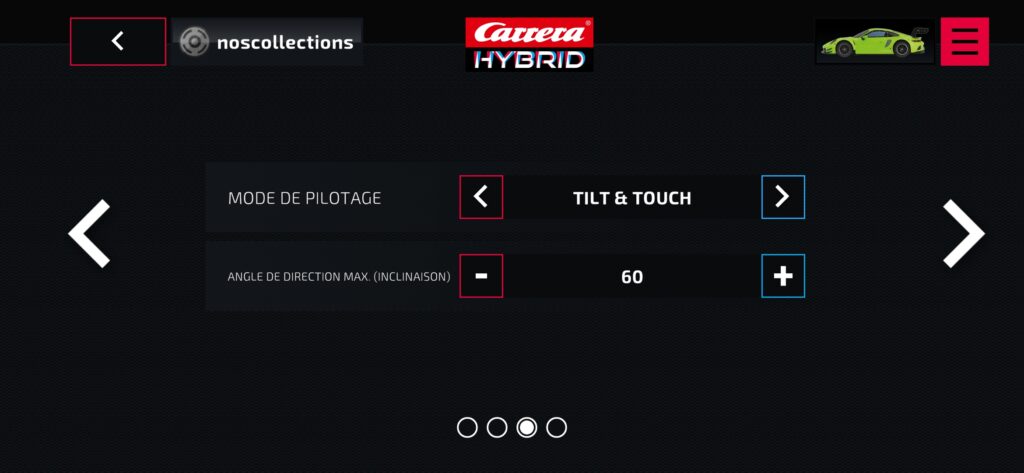
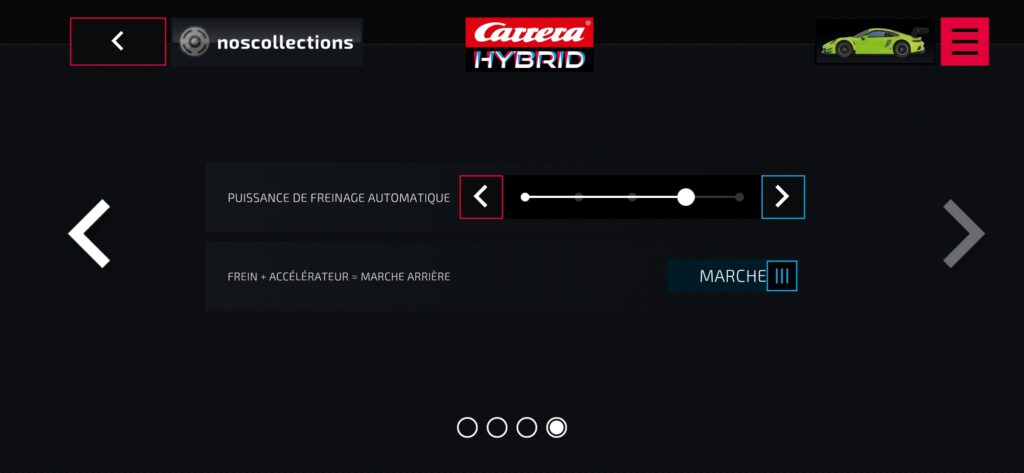
Driving
Here is the driving screen with the different modes offered
The screen while driving
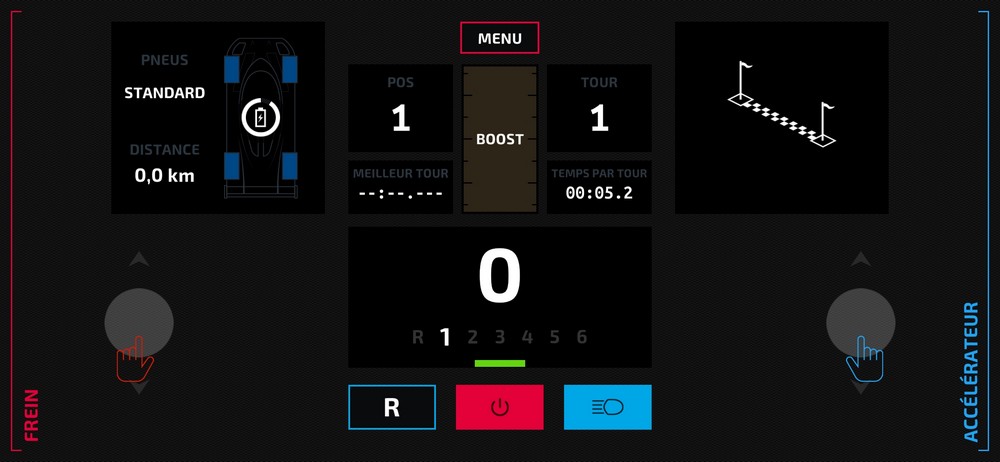
The interface offers different information:
- Tire type in the top left.
- Battery status in the top left in white.
- Your position
- Your current lap
- Your times
- Your speed and gear ratio (1-6)
- The blue button allows you to turn the car’s headlights on or off.
- The “R” button allows you to engage reverse gear.
- The red button exits the mode.
Career
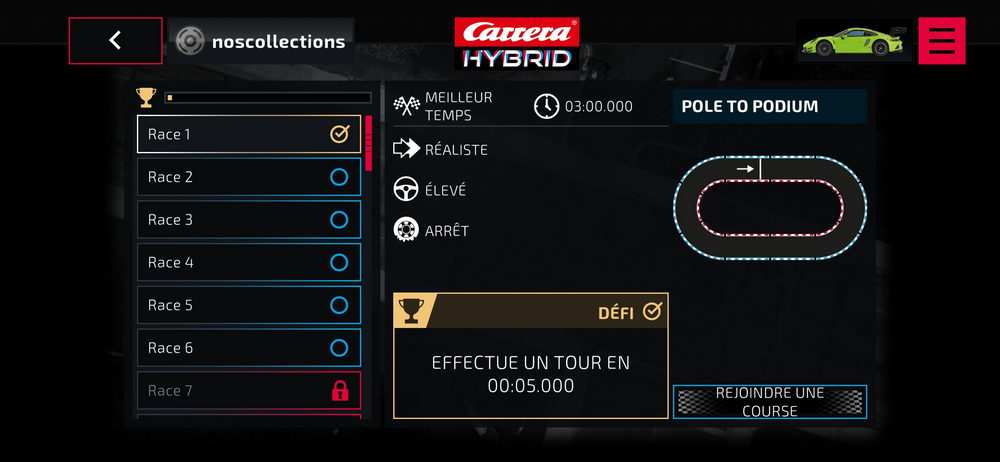
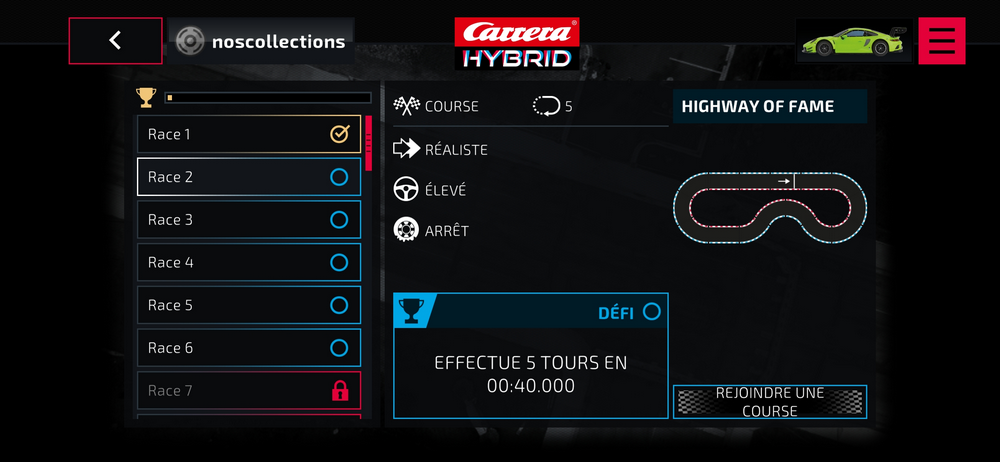
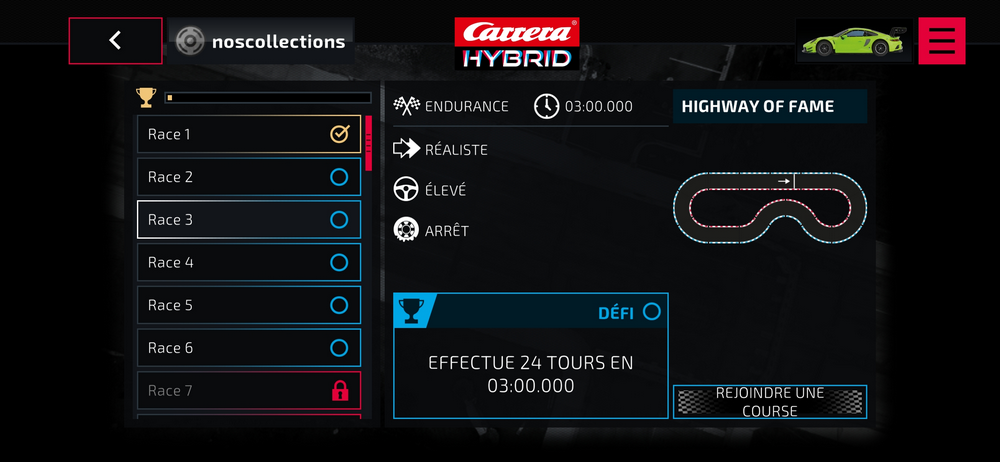
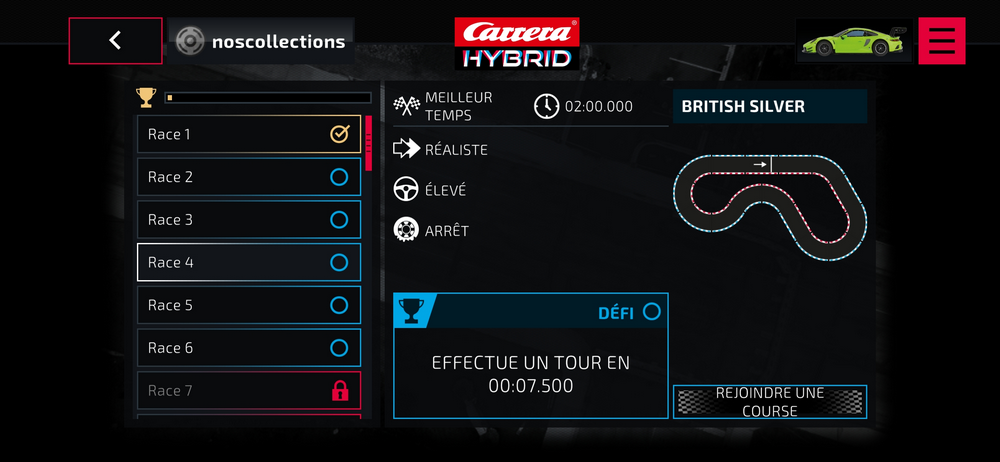
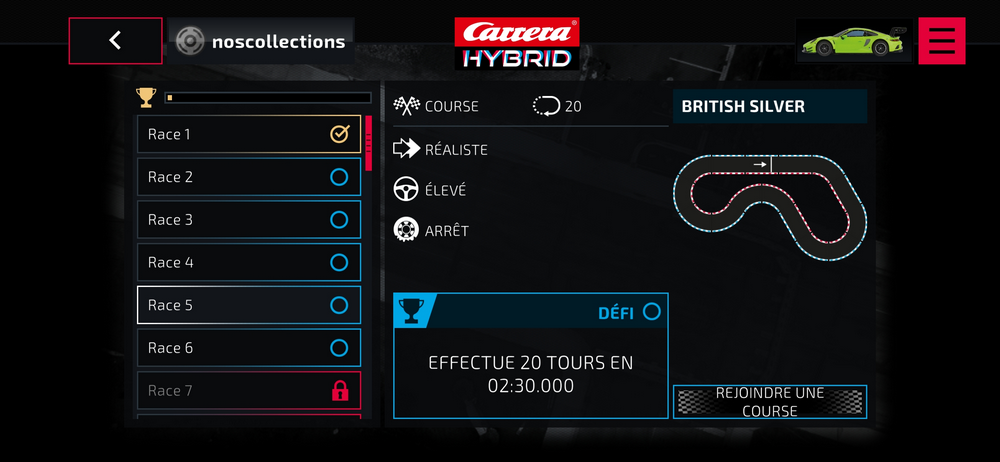
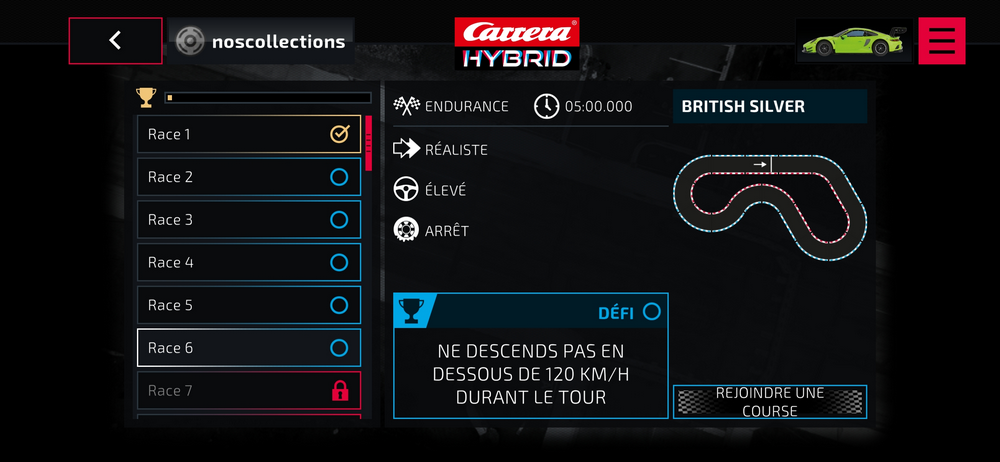
Career mode consists of a series of challenges to complete to gain experience and unlock options for your car.
There are a total of 45 challenges, including the first few:
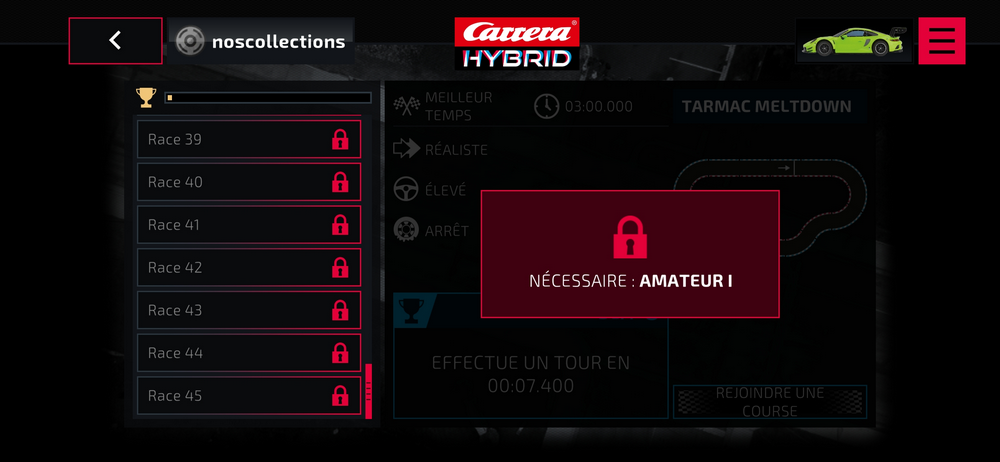
Join a race
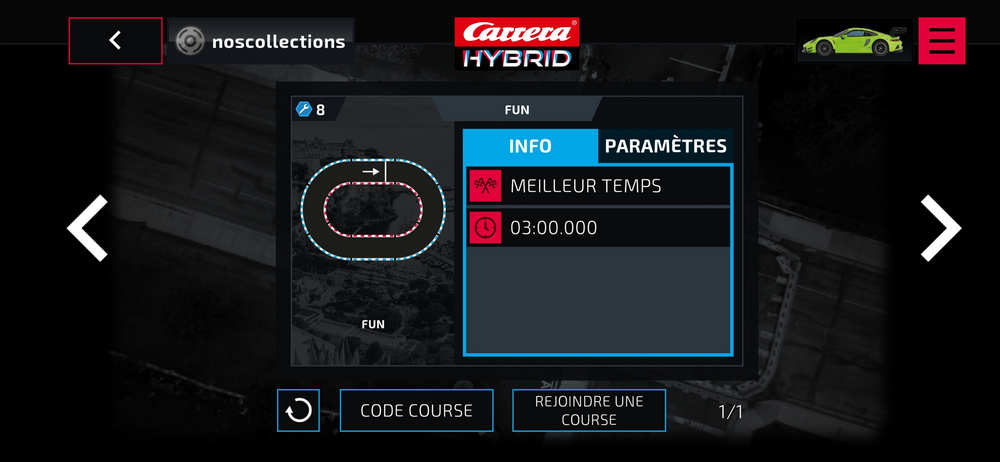
When you choose to join a race, the app shows you all available races. Simply use the right and left arrows.
You can also enter a RACE CODE.
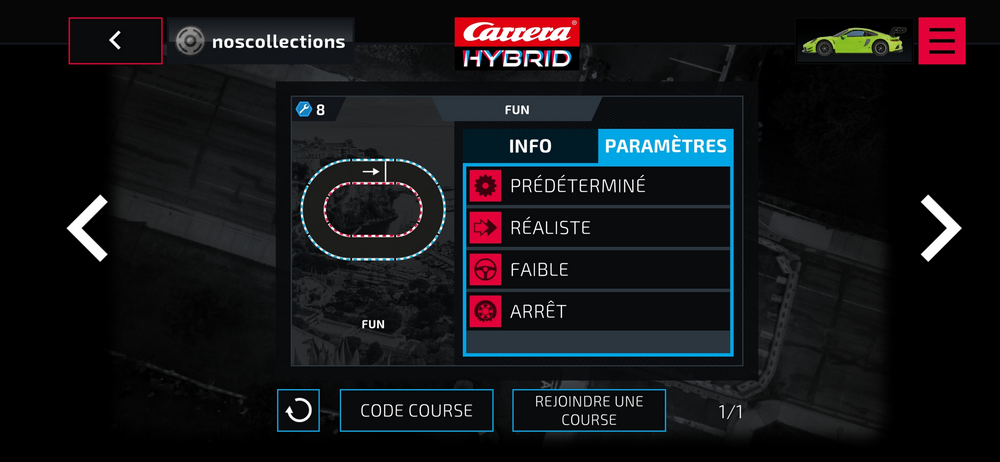
By clicking on “SETTINGS” you can view the race settings.
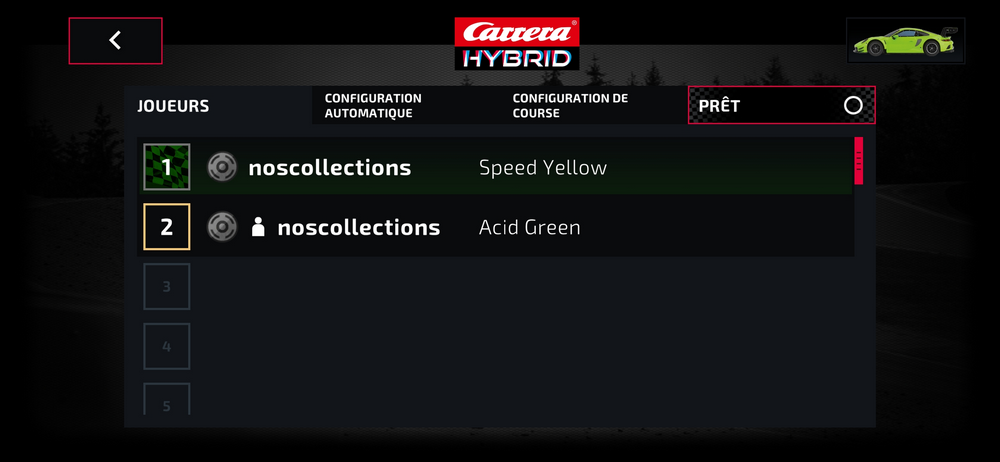
The list of players in the waiting room is displayed. Don’t forget to click “READY” in the top right corner so that the box is checked.
When everyone is ready, the starting procedure begins with automatic or manual placement of the cars.
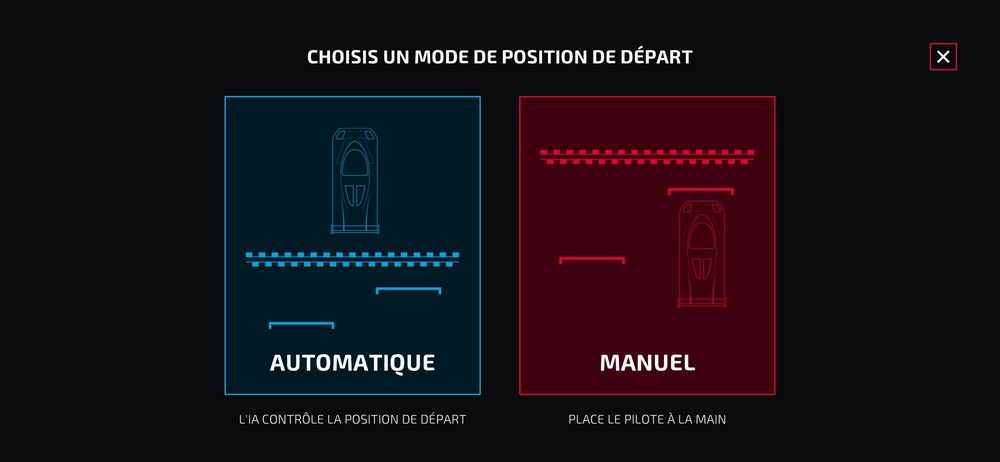
When everyone’s in place, let’s go.
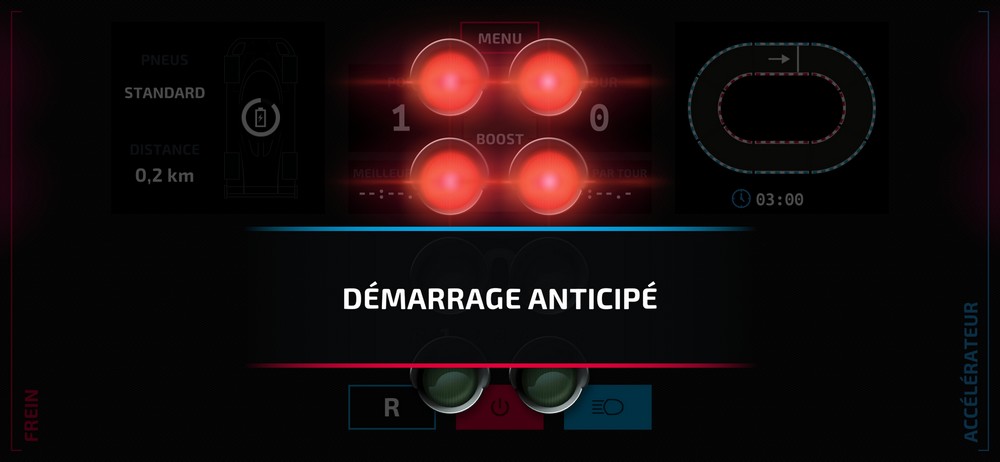
Be careful not to steal the start like I did. There’s no cheating.
Create a race
To create a race, here is the process.
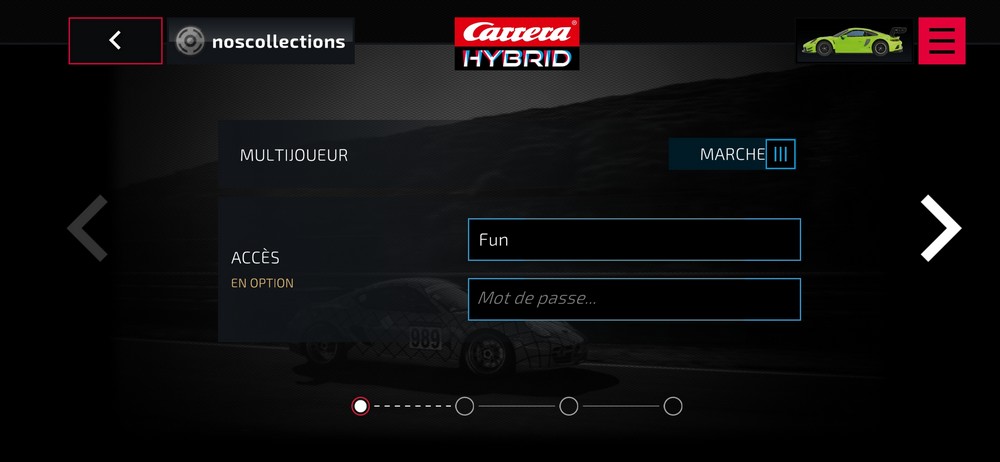
Give your race a name, and if necessary a code to control access.
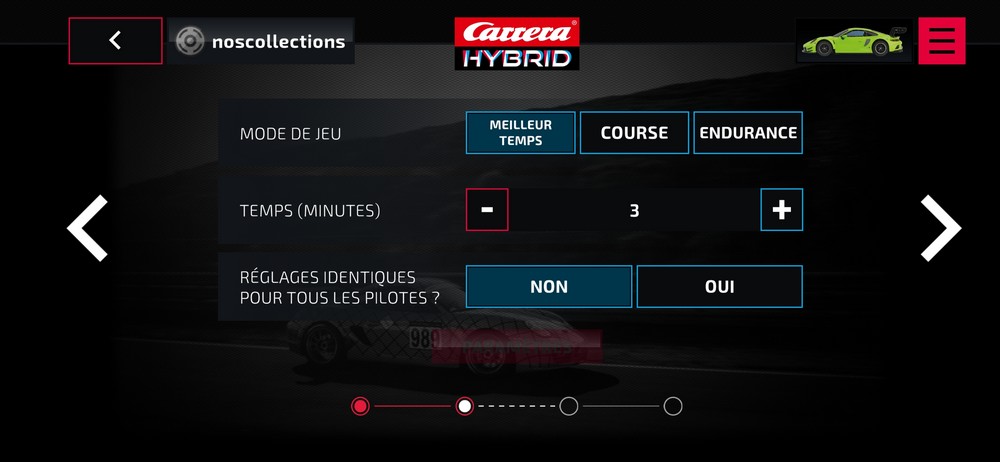
Set the race type and its settings.
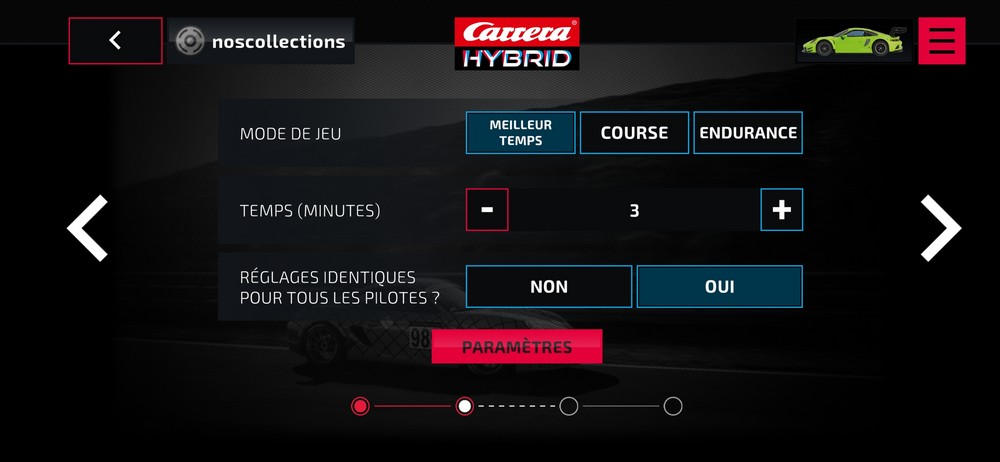
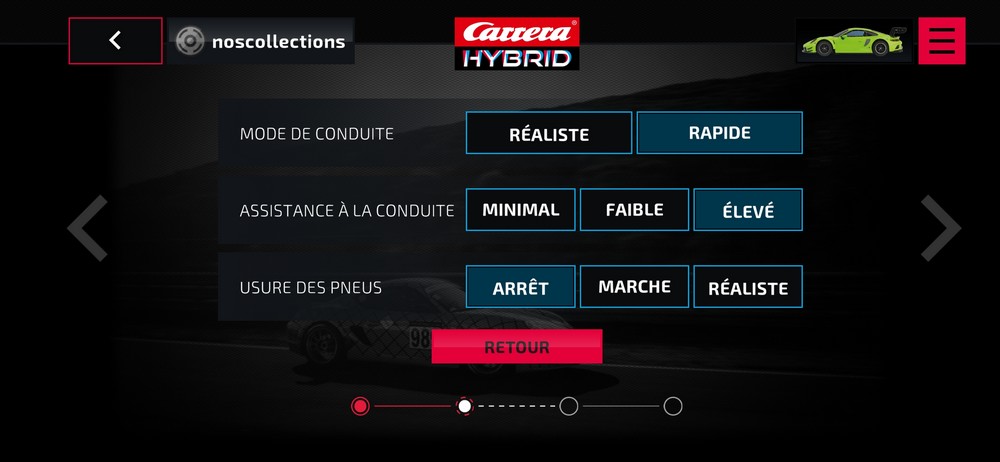
If you choose to have identical settings for all drivers, indicate this and you will be able to access the following settings:
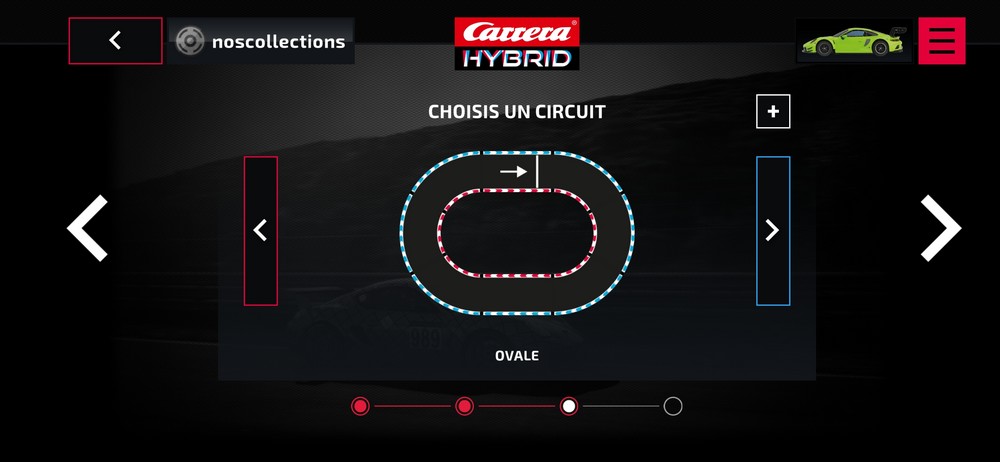
Then choose the track
Now you can create the living room.
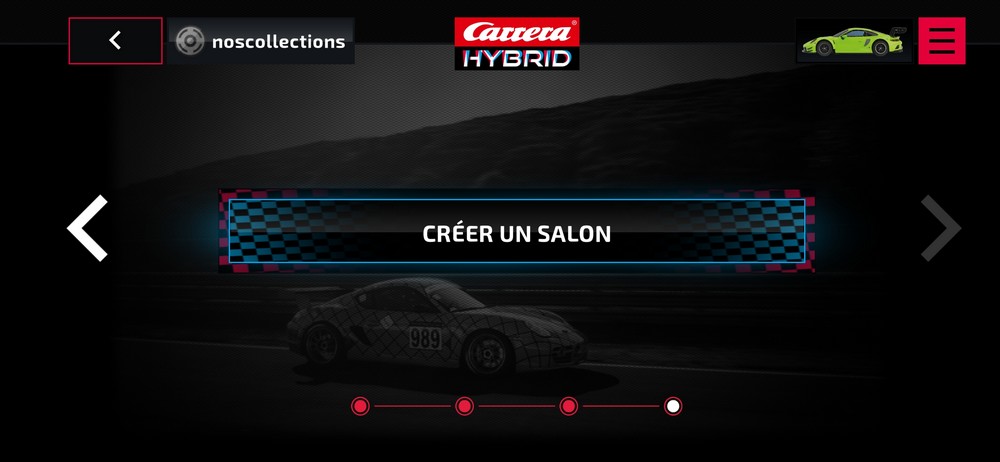
The list of players joining your race is displayed. And when everyone is ready, you can start.
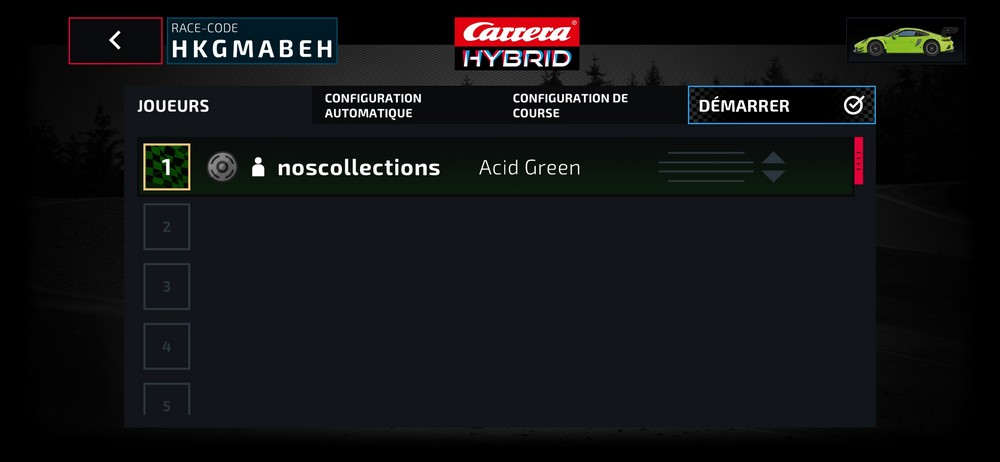
Last thing, choose how to position your car for the start.
And here we go. But wait for the green light.
Free driving without track
If you just want to cruise around the living room without a track, then the “Trackless Free Drive” mode is for you. Park the car and drive wherever you want.
Free driving on the track
If you want to practice without racing, then the “Free Track Driving” mode is what you need.
Instructions (help)
Need help? Check out the instructions in the top right menu (red).
The instructions refer to Carrera tutorial videos.
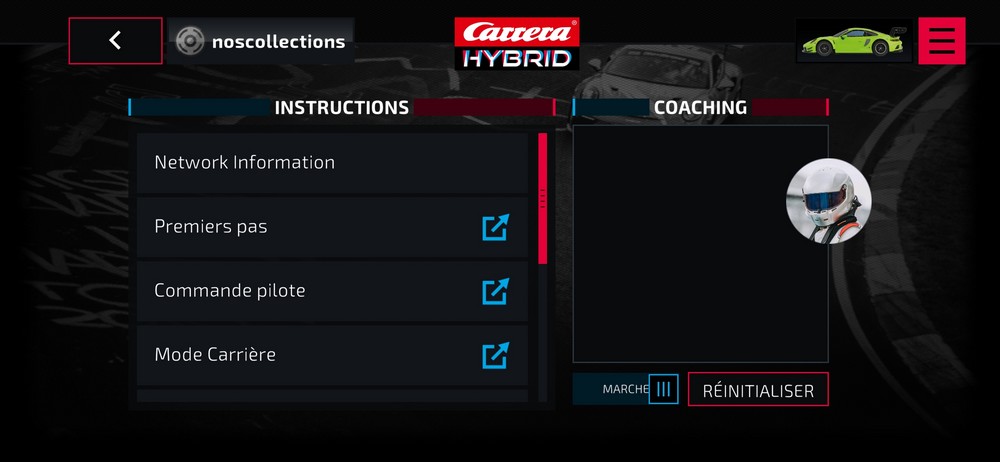
For the moment the Coaching section is empty.