When using the Slot Track Architect track editor, I always wonder if the track is fast or slow, and if the cars will be fast.
During Formula 1 Grand Prix races, you see track layouts with track colors based on various parameters. I’ve always thought that would be amazing for our tracks.
So here’s a tool that, based on different parameters, will estimate speeds on the track.
It will also allow you to choose a car based on its characteristics relative to the main characteristics of the track.
Links Slot Track Architect :
Slot Track Architect FIRST :
https://carrera-fun.com/track_architect/interface_FIRST.php
Slot Track Architect GO :
https://carrera-fun.com/track_architect/interface_GO.php
Slot Track Architect D132 :
https://carrera-fun.com/track_architect/interface_D132.php
Slot Track Architect HYBRID :
https://carrera-fun.com/track_architect/interface_HYBRID.php
Once you’ve created a track with Slot Track Architect, go to the “Files” tab on the right and click the “Send to Telemetry” button.
Note that some specific track types are not yet supported, but this is in progress (for example, crossovers and GO loops).
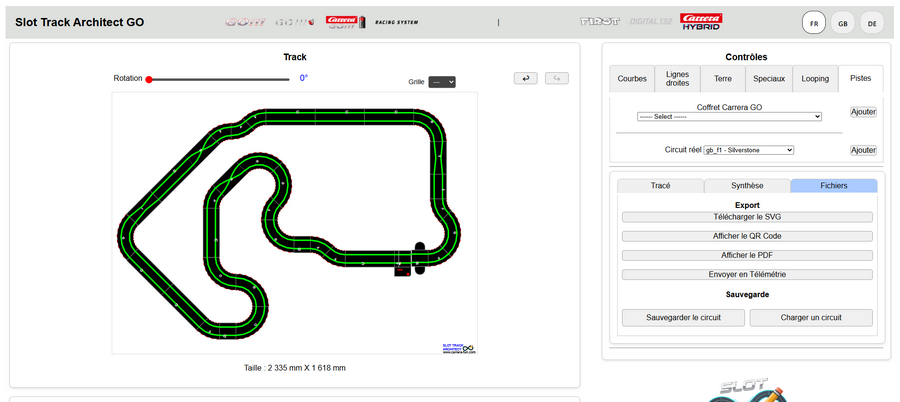
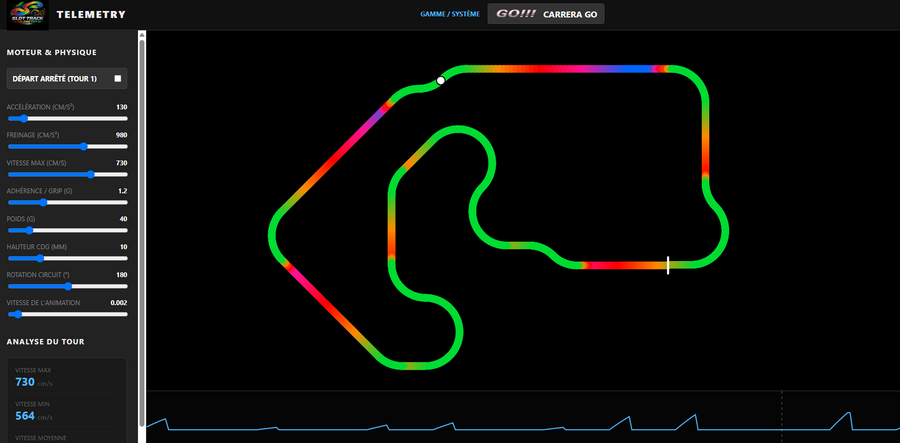
The “Telemetry” tool opens.
The page is divided into four sections:
The main section with the track layout
To the left are adjustment sliders for different vehicles.
In the bottom right corner, a graph displays speed variations.
In the bottom left corner, some data is displayed.
Settings
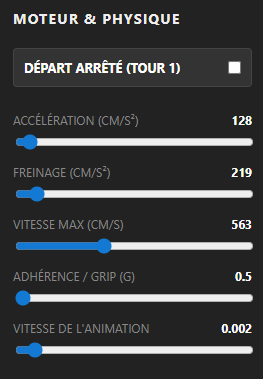
All cars are different, so depending on their characteristics you can modify the following parameters:
- Acceleration (cm/s²): The vehicle’s ability to gain speed
- Braking (cm/s²): The vehicle’s ability to slow down or stop
- Maximum Speed (cm/s): The fastest speed the car can reach
- Grip: The tires’ ability to grip the track without slipping
- Weight (g): The vehicle’s total mass
- Center of Gravity Height: The vehicle’s balance point, which determines its stability
Other sliders are available:
- Circuit rotation
- Animation speed
The tool estimates and provides numerical data based on the data provided.
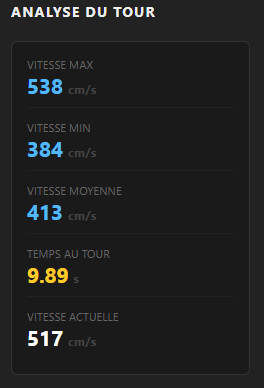
- Maximum speed reached
- Minimum speed
- Average speed
- Lap time
- Speed of the moving point displayed on the track
Colors
On the map, the colors are displayed according to speed, with the following color palette
- Green: slow speed
- Red: medium speed
- Blue: fast speed
This allows you to easily get an idea of the fast sections of the circuit, as well as the slow sections.
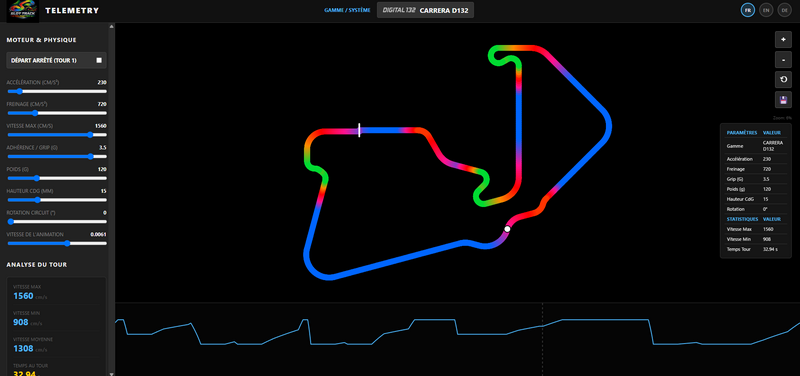
A white dot moves along the track; its speed is displayed on the left, and a vertical bar shows its position on the bottom curve.
By pressing the floppy disk icon on the right, you can export the track with its colors to SVG format.
Telemetry is available for the following ranges:
- GO
- Track D124 – D132 – Evolution
- Hybrid
I hope this will be useful to you and will help you to better compare circuits and properly set up your cars.