Since launching my track editor, Slot Track Architect, I’ve spent a lot of time trying to recreate legendary real-world tracks. My method? Displaying the track plan I found online on a second screen (or printing it out) and attempting to redraw it “by eye” in the editor.
The result was often frustrating: difficult to maintain the correct proportions, constant approximations, and a lot of time wasted adjusting the corners. I figured there had to be a way to optimize this creative process.
That’s how Slot Track Mapper was born.
The idea is simple: to offer a tool capable of tracing a real track layout or drawing freely with intelligent assistance, to obtain a plan that can be built with Carrera track. Note that using a background image isn’t mandatory; the tool works perfectly well for freehand creation!
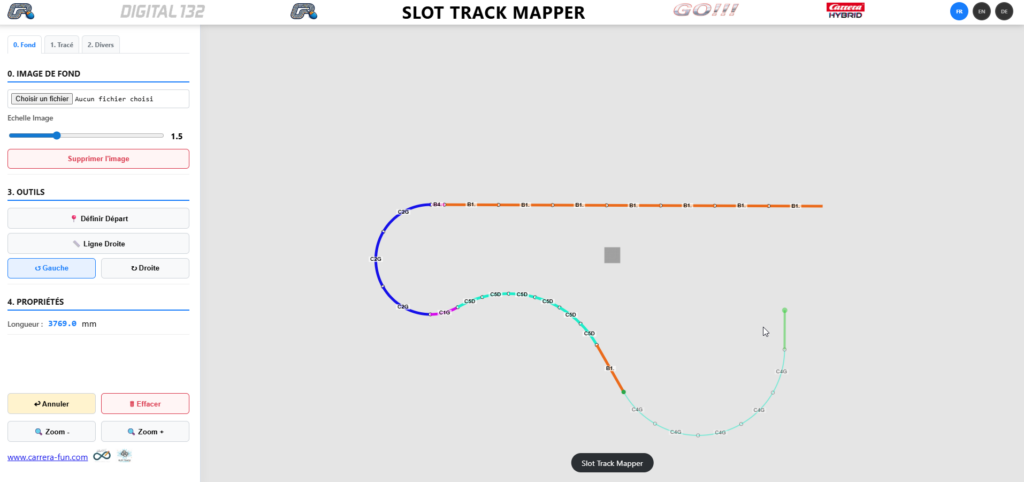
How does it work? The step-by-step tutorial
Here’s how to use Slot Track Mapper to create your next track:
Step 1: Importing (Optional)
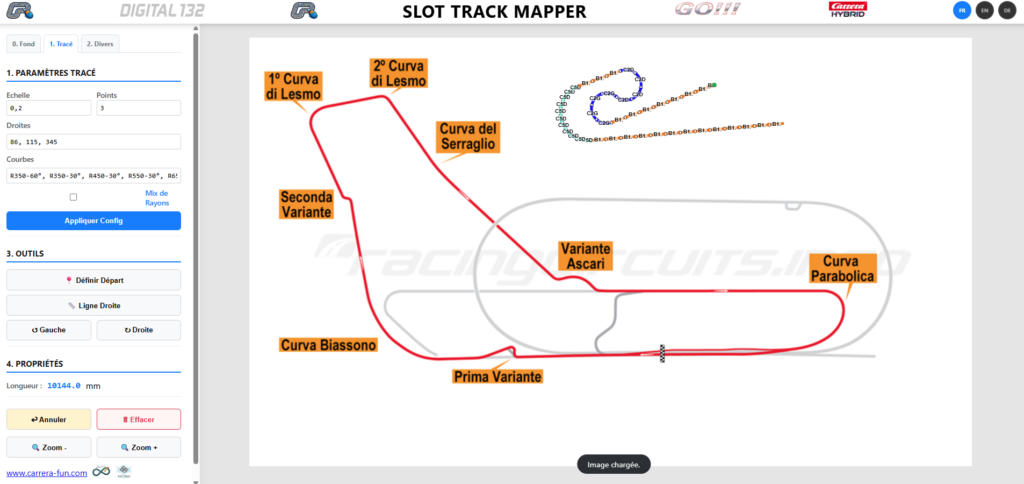
You can import an image (a real track layout, for example) to place in the background. A handy slider lets you adjust the image size to match your desired scale.
Step 2: Starting
Simply set the starting point of your track on the drawing area.
Step 3: Smart Tracking
This is where the magic happens. From your starting point, choose from the left-hand menu whether you want to draw a straight line, a right-hand curve, or a left-hand curve.
The system is designed to make your life easier: the track is automatically drawn to your mouse position. The algorithm itself selects the most suitable track to reach your cursor.
- Various combinations of straight lines.
- A mix of different radii and angles for the curves.
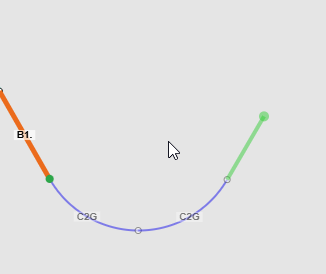
The precision advantage: The green vector. When drawing curves, a green vector appears to indicate the tangent path at the exit of the curve. This is a valuable visual aid: it allows you to immediately check if you are correctly aligned with the next straight line on the plan you are tracing.
If you make a mistake, don’t panic: you can undo the last action or clear everything to start over. The Zoom + and – buttons are also there to help you work on details with precision.
If you make a mistake, don’t panic: you can undo the last action or clear everything to start over. The Zoom + and – buttons are also there to help you work on details with precision.
The “Miscellaneous” tab: Export and Project Management
Once your drawing (or sketch) is complete, the “Miscellaneous” tab offers several powerful options to move from virtual to real:
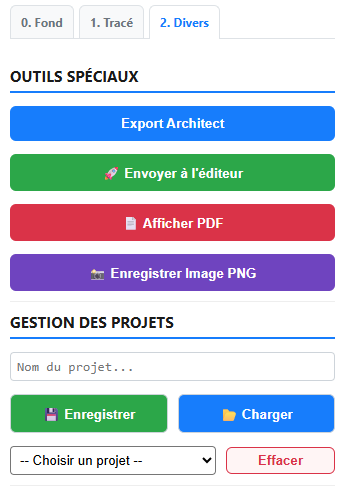
- To Slot Track Architect: You can send your track layout directly to Slot Track Architect or export the track code. This is ideal for finalizing your project by adding special track sections (lane changes, pit lane, etc.).
- PDF Generation: Create a PDF document listing the necessary parts (identical to the one generated by Slot Track Architect).
- Image Saving: Save a preview of your track layout.
Project Management: You can save your work and load existing projects. Everything is stored locally in your browser, making it easy to resume creating later.
Tip:
If you’re looking for racetracks to build, check out the excellent Racing Circuit website. Info:
https://www.racingcircuits.info
This application is a first version (V1). It is functional and ready to use, but further improvements will be released in the future to make it even more powerful.
To date, three versions are available:
Go : https://carrera-fun.com/track_architect/stm_GO.php
D132 : https://carrera-fun.com/track_architect/stm_d132.php
HYBRID : https://carrera-fun.com/track_architect/stm_HYBRID.php